License Device Limits
Written By trucorp
Last updated Almost 2 years ago
How Device Limits Work
Licenses allow you to log in to a number of device simultaneously, depending what you have purchased for your requirements.
For example:
You purchase a license that allows 2 devices.
You log into one iPad, and log in using your iPhone - this uses your 2 device limit.
You log in using a third device - the app gives a warning that you have reached your limit.
Adding a device
Simply log in to the app, and the system will automatically register your device to your license.
Removing a device
Simply log out of the TruMonitor app, this removes the device from your account.
Fixing the ‘Device Limit Reached’ Message
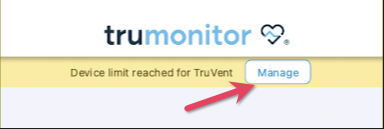
Sometimes, you may see a warning that your ‘device limit is exceeded’.
This can happen if you update or replace your devices without logging out, or if you got a new device.
This is easily fixed by removing old devices manually
Tap ‘Manage’ beside the warning, or ‘Manage Licenses’ in the side menu.
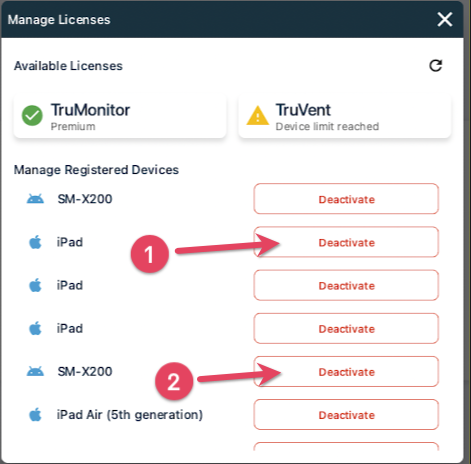
Look through the list of devices - find any that may be old or not needed anymore.
Tap ‘Deactivate’ to remove any old device. You may need to do this a few times to remove multiple devices.
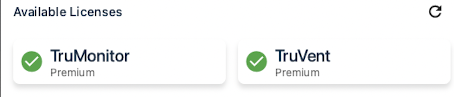
When all old devices are removed, green ticks will appear beside your licenses, indicating your device is fully registered and ready to start.