Customising Monitor Skins
Written By trucorp
Last updated About 1 year ago
TruMonitor allows you to customise the appearance and behaviour of each monitor skin, giving you full control over what’s displayed during a simulation. This includes waveforms, vitals, colours, and layout order.
What You Can Customise
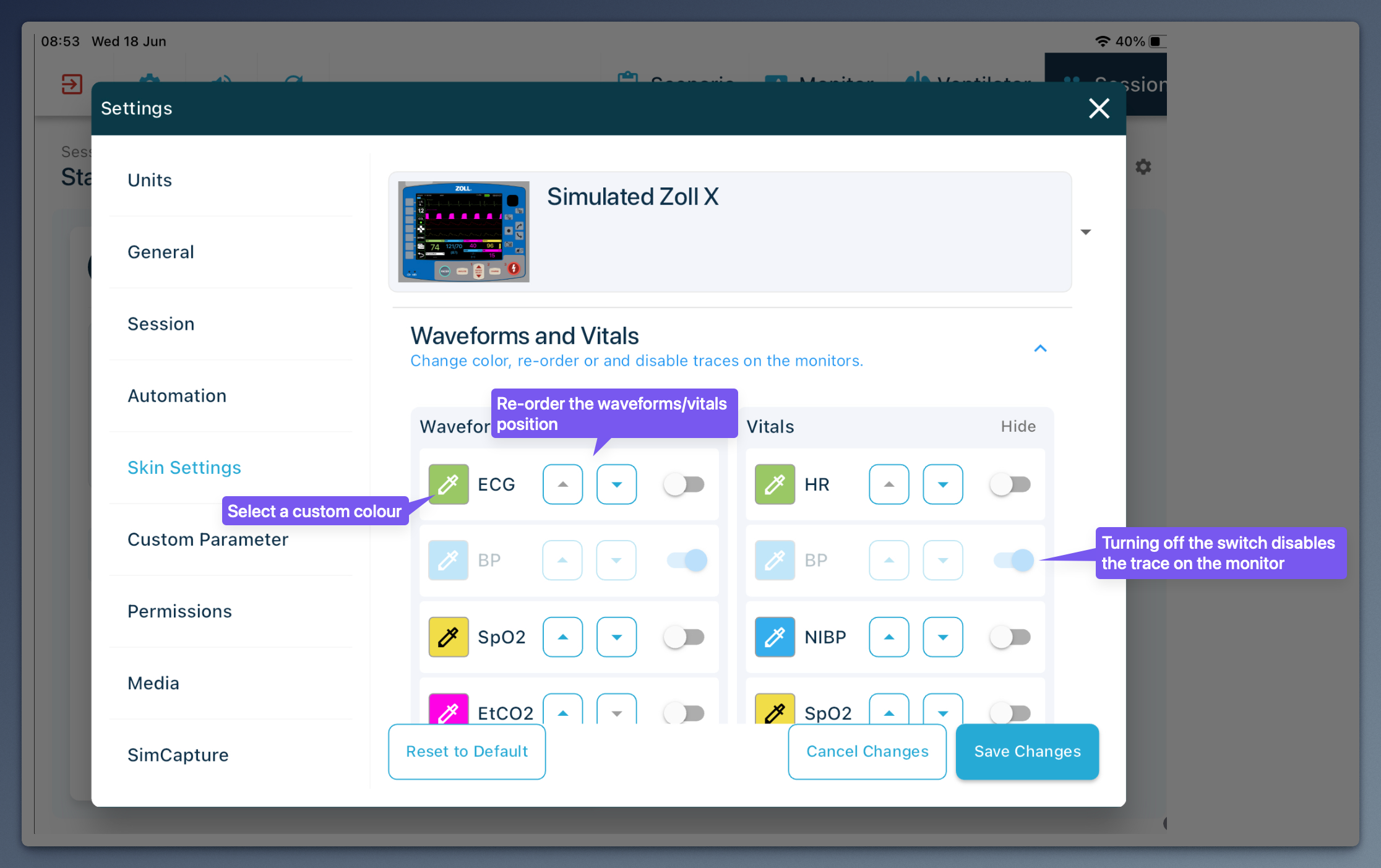
1. Show or Hide Waveforms and Vitals
You can selectively enable or disable any waveform or vital sign on the screen.
Waveforms: ECG, SpO₂, EtCO₂, etc.
Vitals: Heart rate, respiratory rate, temperature, etc.
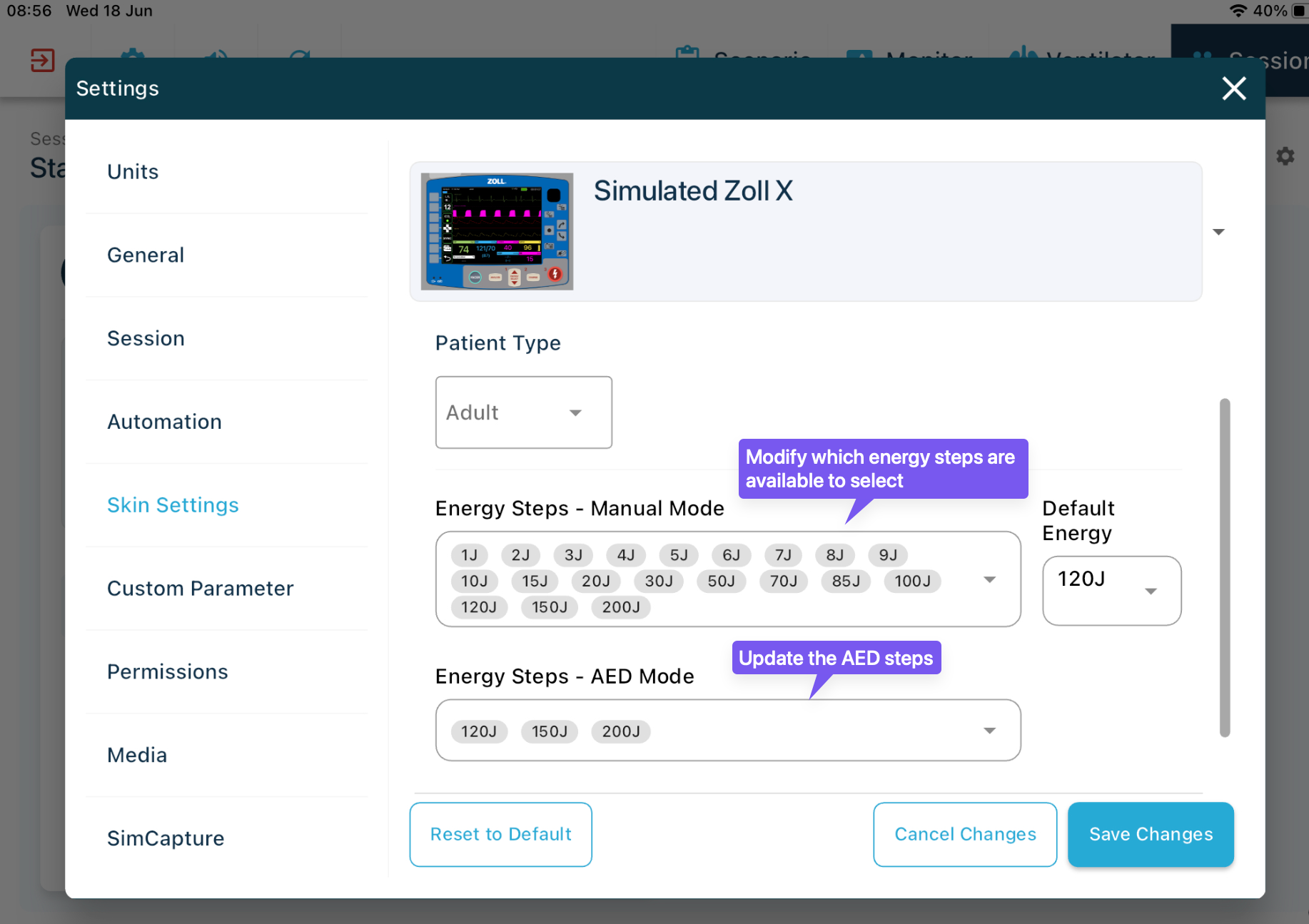
Defib & AED energy levels - change which energies are available at different age ranges.
✅ Useful when focusing on specific systems (e.g., cardiac only) or simulating limited equipment.
2. Change Colours
You can change the display colours of waveforms and vital signs to match:
Institutional conventions
Learner needs (e.g. colour blindness)
Device types (e.g. matching real equipment colour schemes)
3. Reorder Vital Signs
Easily adjust the order in which vitals are displayed on screen. This lets you:
Group related values (e.g. blood pressure near heart rate)
Reflect different equipment layouts
Tailor the interface for specific scenarios or learners
How to Customise a Skin
Go to the Monitor Skin Settings
From the session screen, or instructor settings, tap ‘skin settings’
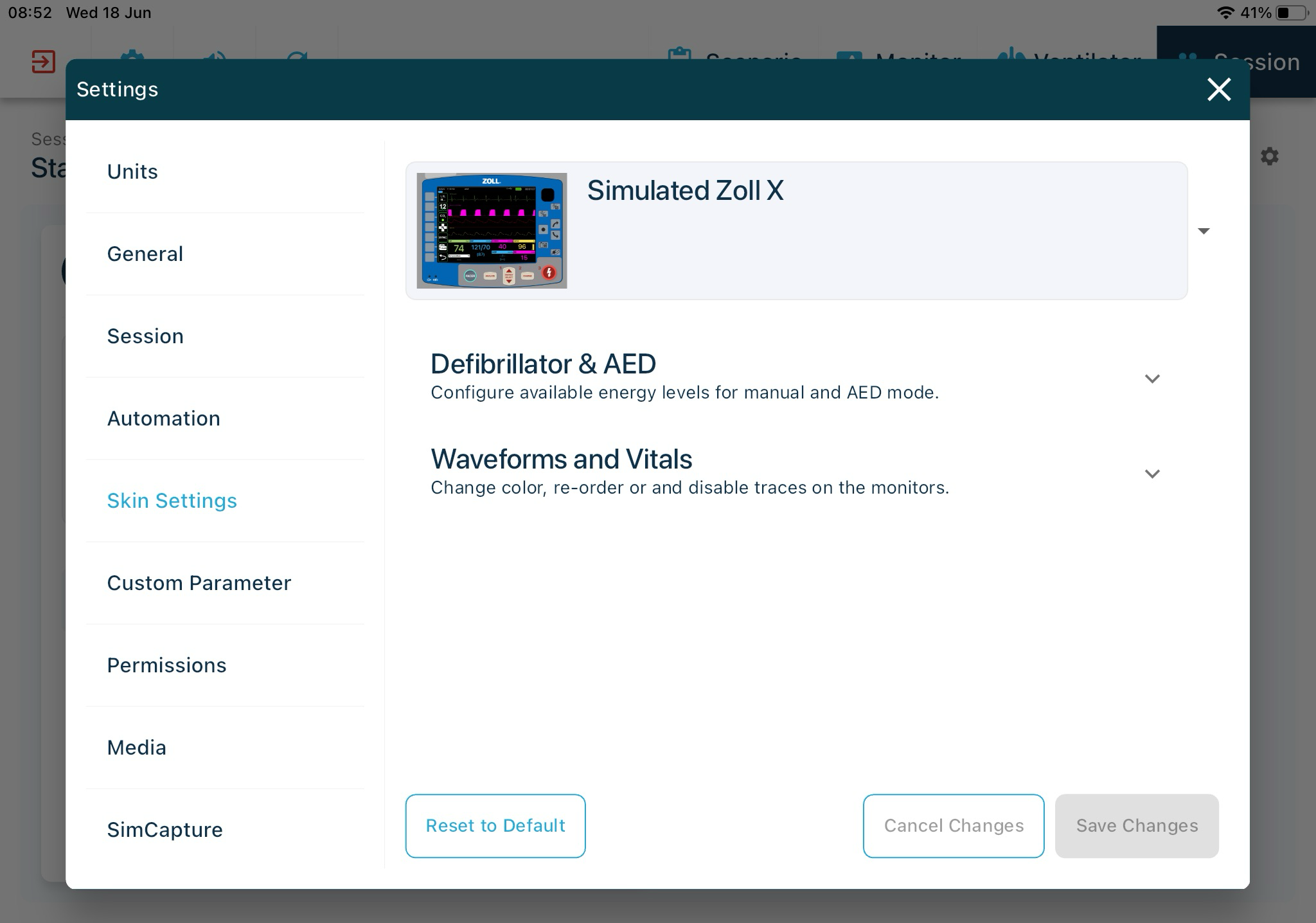
Select the Skin You Want to Modify
Adjust Display Settings or Defib Settings
Toggle waveforms/vitals on or off.
Tap on colours to choose new ones.
Drag items to reorder them.
Save Your Changes
Your customised skin can now be selected for any future session.