Connection Troubleshooting - iOS Devices
Written By trucorp
Last updated 7 months ago
In the unlikely event that you experience connection trouble, this can usually be resolved by carefully following the steps below.
Possible Fixes for iOS Devices
Please follow the steps carefully in order - these steps fix the vast majority of all potential issues.
Follow the recommended steps in order. If the connection still doesn’t work, proceed to the next step.
#1 Reboot the Devices
Completely Power off both your iPads and power them on again.
If this doesn’t help, proceed to the next suggestion.
#2 Delete the apps completely and re-install
Delete the apps from both instructor and student iPads and re-download from the App Store.
Now re-open the apps, start a session and check if connections are working.
If this doesn’t help, proceed to the next suggestion.
#3 Check Local Network Permission
This is a common issue that can block the connections.
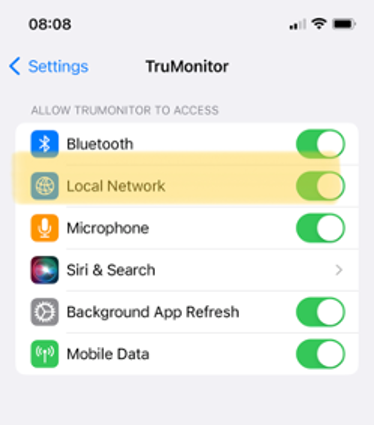
On both tablets, go to iPad main settings page
Scroll down and locate TruMonitor
Confirm that this Local Network toggle is enabled
You must check this setting is enabled on both of your tablets
‘Local Network’ setting missing? Ensure you have opened the TruMonitor app and attempted to start and join a session on each device.
#4 Disconnect from your normal Wifi
It's likely the local network is blocking the connections, possibly by IT security restrictions.
To avoid this, it’s possible to connect the iPads directly, which TruMonitor will do automatically.
This step will have you disconnect from your local Wi-fi, allowing TruMonitor to automatically set up it’s own internal Wifi connection.
Ensure you are signed in to TruMonitor on Both tablets
Disconnect from the Wi-Fi completely on both your devices, via Control Center it should look like this - Wifi is ON but disconnected.
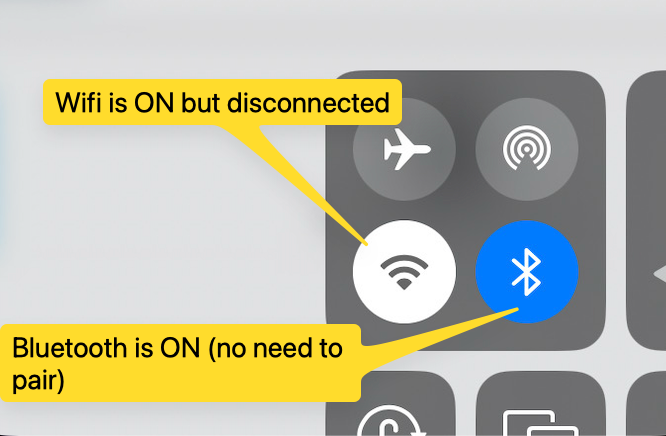
Now proceed to set up a TruMonitor local session normally, the two iPads should automatically be able to connect to each other directly.
Use ‘Remote Session’
Follow the instructions here to set up a remote connection.
This can be used to work around local IT restrictions.
IT Restrictions - Hospital / University Wi-fi Issues
Customers may have difficulty connecting if their IT policies are blocking connections.
Please check the with your IT department if the configuration requirements could cause any issues:
Download the Network Configuration Requirements - Consult with your IT Department:
TruMonitor - Network Configuration Request.pdf
288.4 KB• Document