Connection Troubleshooting - Android Devices
Written By trucorp
Last updated Almost 2 years ago
In the unlikely event that you experience connection trouble, this can usually be resolved by carefully following the steps below.
Possible Fixes for Android Devices
Follow the recommended steps in order. If the connection still doesn’t work, proceed to the next step.
Check for Updates
Ensure you have updated to the latest version of Trumonitor from the Google Play store, and that both devices are using the same version.
Reboot the devices
Completely Power off both your Android devices and power them on again.
If this doesn’t help, proceed to the next suggestion.
Delete the apps completely and re-install
Delete the apps from both instructor and student tablets and re-download from the Play Store.
Now re-open the apps, start a session and check if connections are working.
If this doesn’t help, proceed to the next suggestion.
Check Local Network Permission
This is a common issue that can block the connections.
On both tablets, go to iPad main settings page
Scroll down and locate TruMonitor
Confirm that this Local Network toggle is enabled
You must check this setting is enabled on both of your tablets
Ensure Location Permission is Granted in App
Location service is required to allow Android devices to find each other. We don’t use location for anything else.
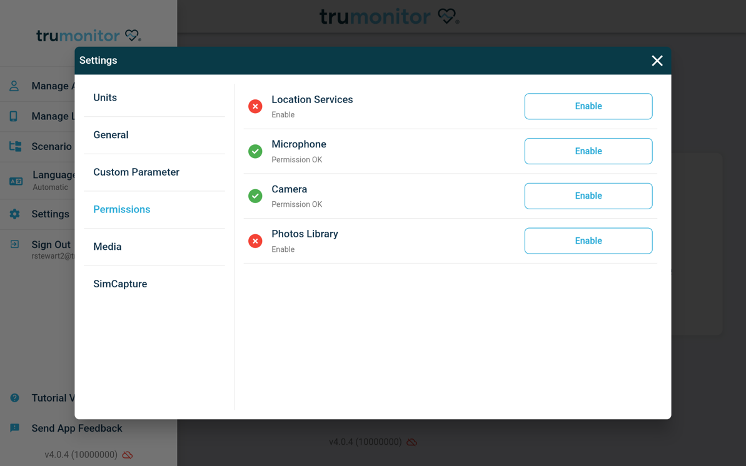
On both student and instructor tablets, from the side menu, open the ‘Settings’ dialog, and click ‘Permissions’
Confirm that you have a green tick next to Location Services. If not, click ‘Enable’, and accept the request for location.
Check this setting is enabled on both of your tablets
Enable button not working? Continue with the next steps.
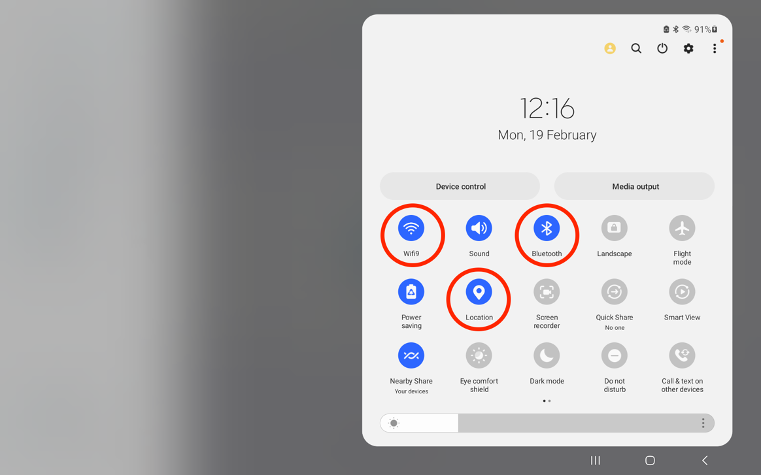
Check Android main settings
It is possible for location services to be turned off for your entire tablet, which can prevent TruMonitor connections.
• From your system settings view, ensure LOCATION is enabled.
• Check that Wi-Fi and Bluetooth are also enabled.
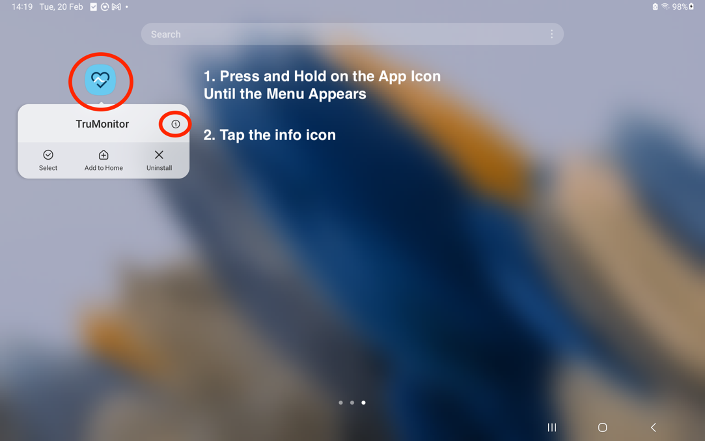
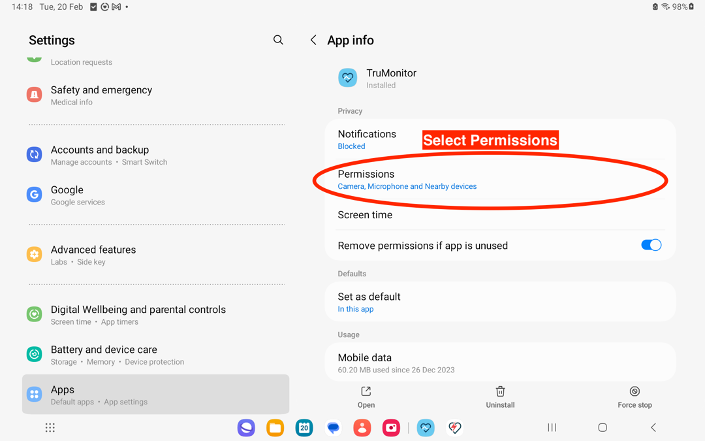
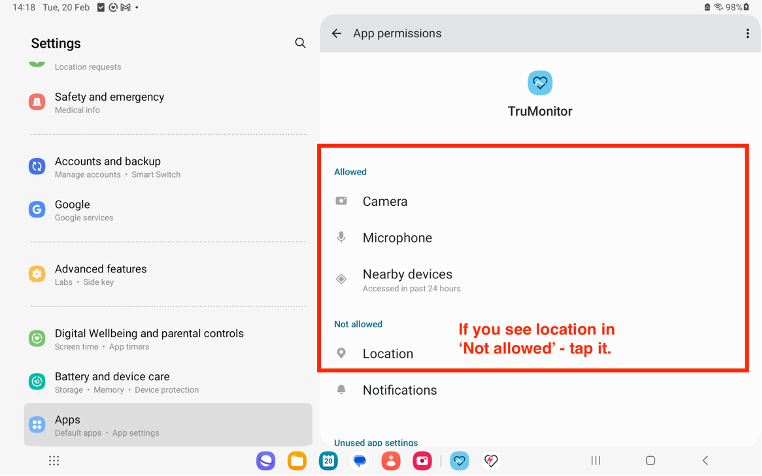
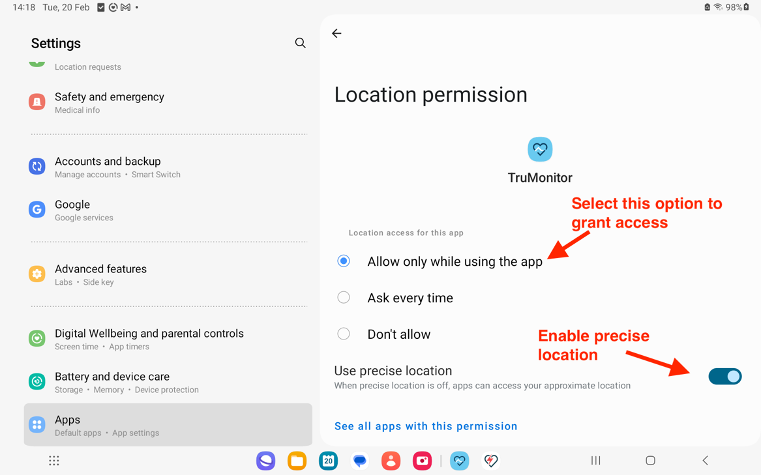
Check app location setting
Try using another network
Sometimes, network security restrictions can block the communication. This is common in hospital or university settings where custom IT is in place.
Try using a guest Wi-Fi network, or your mobile phone hotspot to eliminate this as a potential cause.
Use ‘Remote Session’
Follow the instructions here to set up a remote connection.
This can be used to work around local IT restrictions.
Try turning off Wi-fi Completely
It's likely the local network is blocking the connections, possibly by IT security restrictions.
To avoid this, it’s possible to connect the devices directly, which TruMonitor will do automatically.
This step will have you disconnect from your local Wi-fi, allowing TruMonitor to automatically set up it’s own internal Wifi connection.
Ensure you are signed in to TruMonitor on Both tablets
Turn the Wifi OFF completely on both your devices - and leave it off.
Now proceed to set up a TruMonitor local session normally, the two Android devices should automatically be able to connect to each other directly.
A Note on Institutional / Hospital / University Wi-fi Issues
Occasionally customers may have difficulty connecting if their IT policies are prohibiting connections due to IT security restrictions.
If you have tried all of the steps above and are unable to connect, you can check if your local network is causing an issue by using a mobile hotspot, or an alternative Wi-fi.
Connect both of your TruMonitor devices to the alternative wi-fi and attempt connection again.
If you are able to succeed on the alternative Wi-fi, but not your normal Wi-fi, security restrictions are probably the issue. Please ask your IT department for advice and/or contact info@trucorp.com for advanced support with this.